By using listi.net you agree to our cookie policy, We and our partners operate globally and use cookies, for multiple purposes

listi.net


find space sheet

Reasons to be out of space or Problem
  • Google limit of 15 Gb
  • Check if you already have the file you're going to delete

    Steps
  • Get the directory info to a file
  • Copy it to a sheet
  • Extract data and write functions
  • Sort by size or filename
  • Conditional format on duplicates
  • Code or manually delete files
  • Pivot to find additional information


    Prerequisites
  • CMD or Dos Window
  • File and Folder structure knowledge
  • File Manager
  • Excel Familiarity
    • Column Width
    • Header row
    • Filtering
    • Sort
  • Clipboard
  • File Suffixes
  • Notepad
  • Shortcut keys
  • Drives
  • Using Modules
  • Binary numbers

    Skills Learned
  • Opening a spreadsheet
  • Selecting a cell
  • Selecting All
  • Copying to Clipboard
  • Pasting
  • Press Ok to clear errors if they occur
  • Resize the column width
  • Learning the difference between rows and Columns
  • Clearing Error messages
  • Insert a row
  • delete a row
  • Move to bottom of sheet
  • Move to top of sheet

    VBA Code used
  • (Declarations)
  • CheckIfDeleted
  • CheckWhatToDelete
  • DeleteDupFiles
  • FindLastRow
  • GetSize
  • OpenFile
  • RunProgram

    Get The files on a Drive

    The purpose of this program is to be able to find space you can recover if you're running out of space on a drive.

    Google gives you 15 GB (Gigabytes) of a billion text characters per gigabyte. A byte is 8 bits of ones and zeros. Videos take up the most space, and a 30-minute video can easily vary from 1 GB to 8 GB depending on the quality of the recording.

    If you run out of space, it's probably because you're doing a lot of video processing or just have a small disk drive.

    Older computer users, before Windows existed used software called DOS (Disk Operating System) which was Bill Gates' first system he sold from Microsoft.

    To bring up the Dos also known as (aka) CMD window for Command, you press the Windows key and type cmd or dos

    This should bring up a window that looks like the following:
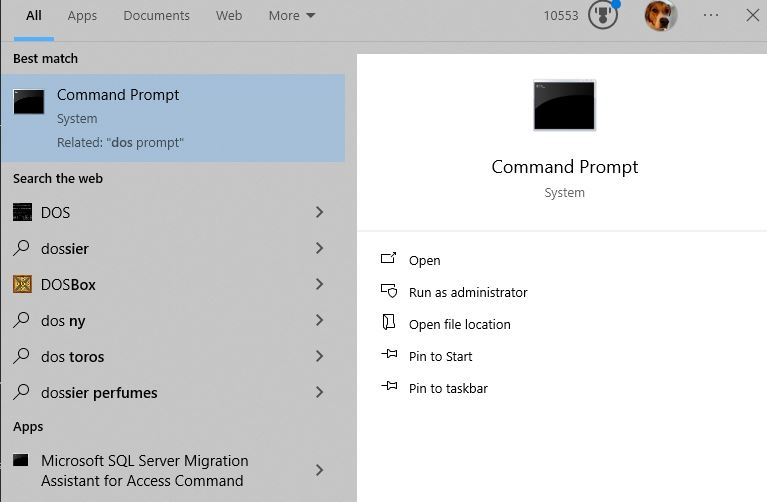


    Press Open and the Dos or Command Prompt window will open.

    The Command Prompt allows you to communicate with the Operating System (Software that runs the computer) to tell it actions to take.
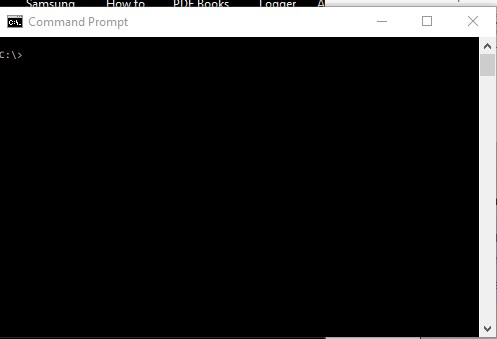


    If you don't see the c:\ prompt you need to enter
    cd \ Enter

    until you do

    The cd is Change Directory

    type the following at the C:\> prompt

    dir *.* /s /b > c:\temp\cdrive.txt



    You can enter help or dir /? to get help on what commands you can enter and their parameters.

    This could take a minute to an hour, depending on how many files there are. I started mine at 9:10 AM.

    It's finished when you see a new c:\ prompt. If you have a lot of files, I have over 1 million and want to get started you can press CTRL  C on the Dos windows and it will stop the current command that's running.

    You could monitor the progress by checking the file
    Win R
    C:\temp\
    Enter
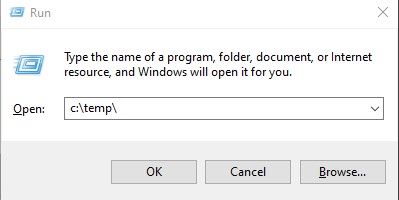


    This will show the file you're outputting data to.
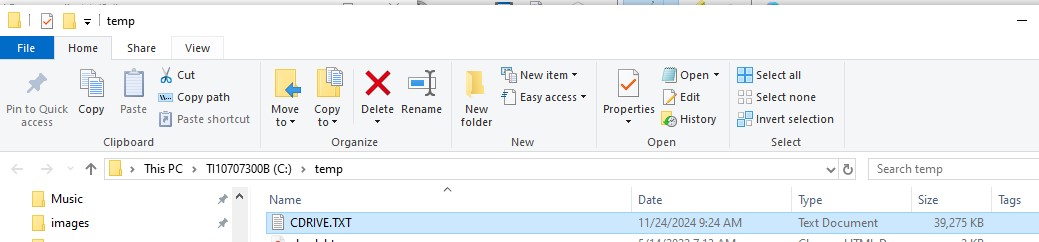


    The file size should change to show you that it's running.

    You can open the file in Notepad by just double-clicking it.

    The file will look something like the following:
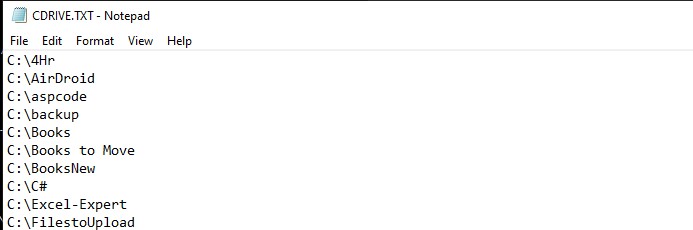


    Directory command is finished

    Once the directory command finishes
  • Open the file
    • find the file in File Manager and double-click it
    • The file should open in Notepad
  • Select all rows (Press CTRL  A )
  • Copy the rows to the clipboard (Press CTRL  C )
  • Open a new Excel Spreadsheet Blank Workbook
  • select the first cell A1
  • Paste in the data CTRL  V
    • You might get an error "This data set is too large for the Excel grid. If you save this workbook, you'll lose data that wasn't loaded"
    • Press  OK
    • You might get one more error message, just press  OK
    • This can occur if you have more than 1,048,576 files on your hard drive
    • The data should appear in your spreadsheet
  • Rename the Sheet1 to C_Drive
    • Right-click the sheet tab
    • Type in new name
    • Press Enter
  • Resize Column A and make it wrap text
  • Add a row to row one to add a heading
    • if you get an error that Excel can't insert new cells you have to go to the bottom of the spreadsheet and delete the last row and then retry
  • In cell A1 enter File Name
  • In cell B1 enter Size
  • Save the file as FindDups.xlsm
    • File
    • Save As
    • Documents Folder
    • Save as type: Excel Macro-Enabled Workbook (*.xlsm)
    • Press  Save
    Go to the VBA Code editing window
  • Add Developer menu aka Ribbon
  • Select Visual Basic
  • Add module from
  • Select GetSize from the right drop-down
  • Press the Run button or press F5
  • Status will be updated on bottom 1,000 records at a time
  • You can stop the code by pressing CTRL  Break

    Continue with the Excel Sheet
  • Add to Cell C1 Folder
  • Resize D1 and add Date
  • Add "File" to E1
  • Go to View Ribbon > Freeze Pane > Freeze Top Row
  • Format Column B to "," then remove the 2 decimals

    Find the biggest Files
  • Sort the sheet on Size Descending
    • Data Ribbon
    • Sort & Filter group
    • Sort button
    • Sort By Size
    • Order Largest to Smallest and press  OK

    Add suffix to a field
  • Resize E column and wrap text
  • to f1 add "Suffix"
  • add formula to cell F2 =mid(A2,Len(A2)-2,1000)
  • Copy the formula in F2 down to the end of the data
  • Convert the column to values (not needed but will make sheet faster)


    Pivot Tabe

    This will allow you to see the usage of space by any of the fields in the spreadsheet
  • Suffix
  • Folder
  • Sort on sum of Suffix to see which types of files are taking up the most space
  • Right-click on Folder crop-down
  • More sort options
  • Descending Sum of Size
  •   Ok
  • Pivot on File name to find dups

    Open files easily
  • Set up macro to run open file if Ctrl+Shift+O is pressed


  • blog comments powered by Disqus