By using listi.net you agree to our cookie policy, We and our partners operate globally and use cookies, for multiple purposes

listi.net


Files

Actions on files
  • Create
  • Read
  • Delete - Kill
  • Add to end
  • File exists
  • Process all files in a directory
  • display a files contents
  • Unzip a file
  • Directories - Change, walk, Create

    Get a filename from a cell
    sFile = [Post_QA_File] - Range name

    Create a file name
    sZipFile = "C:\temp\PostQAReview-[qa_date] & ".xlsx"

    Delete a file
    Kill sFilename

    Fix a filename for a URL to a file name
    sFile = Replace(sFile, "%20"," ")
    sFile = Replace("http://","\\")
    sFile = Replace("https://","\\")

    URLs vs. File Name


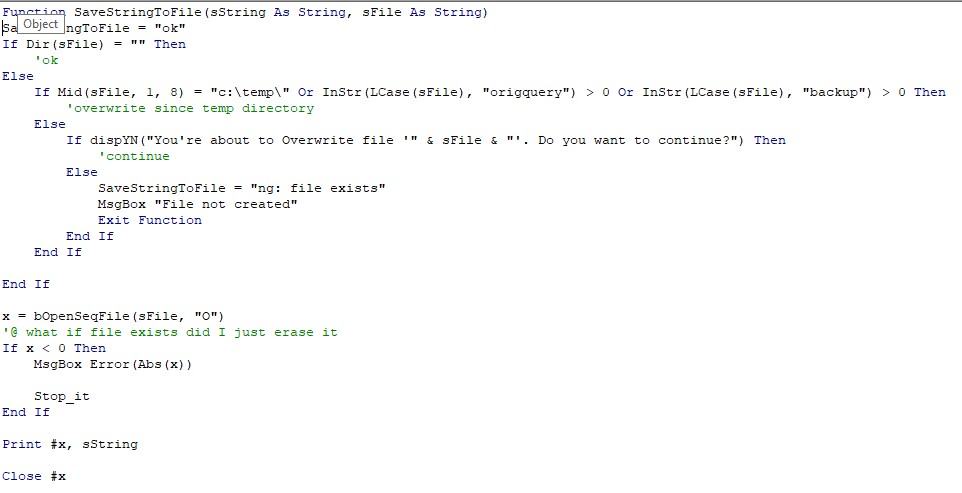
  • Save a string to a file
  • SaveStringToFile (sData),"C:\temp\out.htm"


    Open a file
  • RunProgram "file" - opens the file
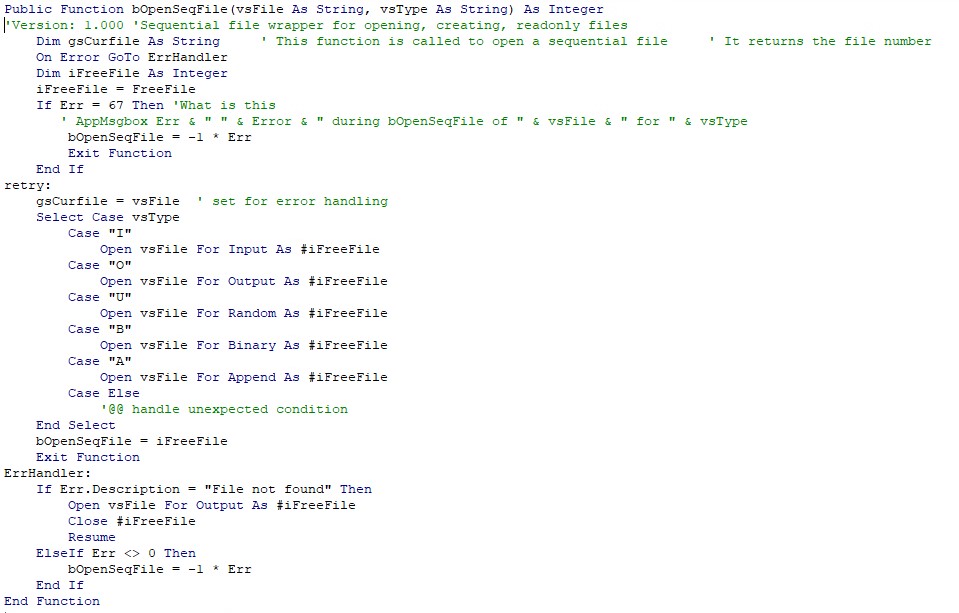
  • bOpenSeqFile - Sequential file
  • Using the FileSystem Object
  • Workbooks.Open - Excel

    Close a file

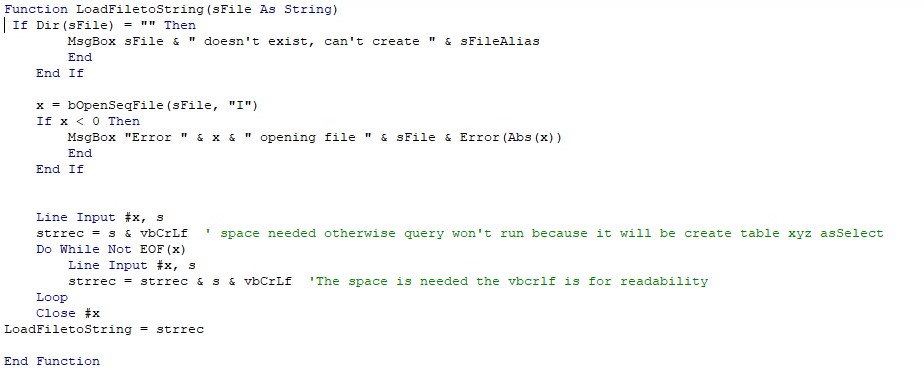
    Get the contents of a file

    Show the file
  • RunProgram "filename"

    Open an Excel file
  • Workbooks.Open filename

    GetReportToThisWorkbook()

    This routine was used to copy the Deployment report file generated via Tableau report Excel and copy it into the active workbook

    Steps
  • DeleteSheet "Deployment Report"
  • Determine file name to retrieve
  • Check if the file exists
  • Open the file
  • Copy in the Sheet
  • Close the file where the data came from
  • Rename sheet


    Determine if a file exists

    If dir(sFile) <> "" then
      'file exists
    end if

    Download a file from a website

    Calling you must convert the HTTP to a file name this worked from sharepoint

    Declarations



    How to call
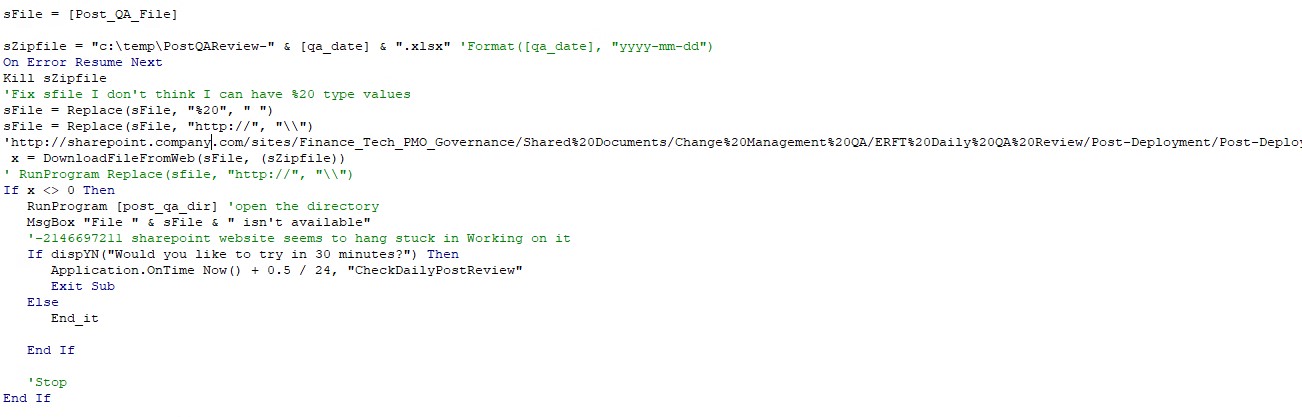


    Routine
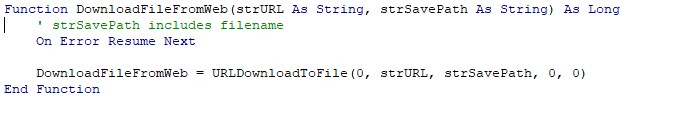

    Check for daily file on SharePoint
  • Delete the sheet
  • Download the data from the expected name
  • if file doesn't then show the directory and ask use if they want to retry in 30 minutes
  • Open the Excel file
  • Copy sheet to active workbook
  • Clean up and look for just data I'm interested in
    • a PM in my team
  • Save results to a HTML file
  • Show the file
  • Send file in email to people who need to see it


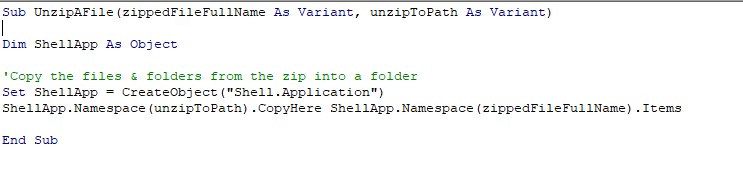
    Unzip a file
    Intro to zip files


    Walk through files in a directory
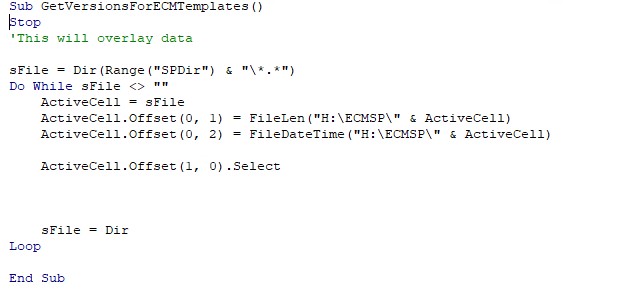


    bOpenSeqFile(sFile, stype)

    Calling



    Routine


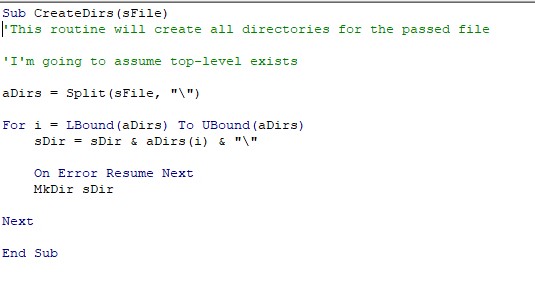
    CreateDirs(sFile)


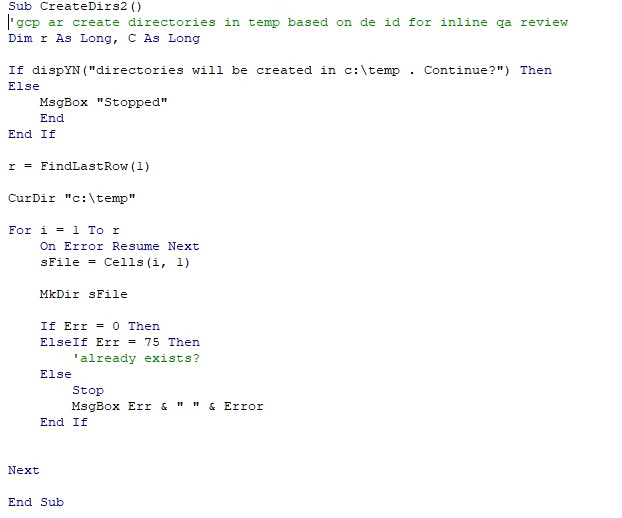
    CreateDirs2


    SaveAllAsPDFFile

    https://www.howto-outlook.com/howto/saveaspdf.htm


    Sub SaveAsPDFfile()

    '=================================================================
    'Description: Outlook macro to save a selected item in the
    '             pdf-format.
    '
    'Important!   This macro requires a reference added to the
    '             Microsoft Word Object Library
    '             In VBA Editor: Tools-> References...
    '
    'author : Robert Sparnaaij
    'version: 2.0
    'website: https://robert365.com/article/saveaspdf
    '=================================================================

        'Get all selected items
        Dim objOL As Outlook.Application
        Dim objSelection As Outlook.Selection
        Dim objItem As Object
        Set objOL = Outlook.Application
        Set objSelection = objOL.ActiveExplorer.Selection

        'Make sure at least one item is selected
        If objSelection.Count <> 1 Then
           Response = MsgBox("Please select a single item", vbExclamation, "Save as PDF")
           Exit Sub
        End If

        'Retrieve the selected item
        Set objItem = objSelection.Item(1)

        'Get the user's TempFolder to store the item in
        Dim FSO As Object, TmpFolder As Object
        Set FSO = CreateObject("scripting.filesystemobject")
        Set tmpFileName = FSO.GetSpecialFolder(2)

        'construct the filename for the temp mht-file
        strName = "www_howto-outlook_com"
        tmpFileName = tmpFileName & "\" & strName & ".mht"

        'Save the mht-file
        objItem.SaveAs tmpFileName, olMHTML

        'Create a Word object
        Dim wrdApp As Word.Application
        Dim wrdDoc As Word.Document
        Set wrdApp = CreateObject("Word.Application")

        'Open the mht-file in Word without Word visible
        Set wrdDoc = wrdApp.Documents.Open(FileName:=tmpFileName, Visible:=False)

        'Define the SaveAs dialog
        Dim dlgSaveAs As FileDialog
        Set dlgSaveAs = wrdApp.FileDialog(msoFileDialogSaveAs)

        'Determine the FilterIndex for saving as a pdf-file
        'Get all the filters
        Dim fdfs As FileDialogFilters
        Dim fdf As FileDialogFilter
        Set fdfs = dlgSaveAs.Filters

        'Loop through the Filters and exit when "pdf" is found
        Dim i As Integer
        i = 0
        For Each fdf In fdfs
            i = i + 1
            If InStr(1, fdf.Extensions, "pdf", vbTextCompare) > 0 Then
                Exit For
            End If
        Next fdf

        'Set the FilterIndex to pdf-files
        dlgSaveAs.FilterIndex = i

        'Get location of the Documents folder
        Dim WshShell As Object
        Dim SpecialPath As String
        Set WshShell = CreateObject("WScript.Shell")
        DocumentsPath = WshShell.SpecialFolders(16)

        'Construct a safe file name from the message subject
        Dim strFileName As String
        strFileName = objItem.Subject

        Set oRegEx = CreateObject("vbscript.regexp")
        oRegEx.Global = True
        oRegEx.Pattern = "[\/:*?""<>|]"
        strFileName = Trim(oRegEx.Replace(strFileName, ""))

        'Set the initial location and file name for SaveAs dialog
        Dim strCurrentFile As String
        dlgSaveAs.InitialFileName = DocumentsPath & "\" & strFileName

        'Show the SaveAs dialog and save the message as pdf
        If dlgSaveAs.Show = -1 Then
            strCurrentFile = dlgSaveAs.SelectedItems(1)

            'Verify if pdf is selected
            If Right(strCurrentFile, 4) <> ".pdf" Then
                Response = MsgBox("Sorry, only saving in the pdf-format is supported." & _
                    vbNewLine & vbNewLine & "Save as pdf instead?", vbInformation + vbOKCancel)
                    If Response = vbCancel Then
                        wrdDoc.Close
                        wrdApp.Quit
                        Exit Sub
                    ElseIf Response = vbOK Then
                        intPos = InStrRev(strCurrentFile, ".")
                        If intPos > 0 Then
                           strCurrentFile = Left(strCurrentFile, intPos - 1)
                        End If

                        strCurrentFile = strCurrentFile & ".pdf"
                    End If
            End If

            'Save as pdf
            wrdDoc.ExportAsFixedFormat OutputFileName:= _
                strCurrentFile, ExportFormat:= _
                wdExportFormatPDF, OpenAfterExport:=False, OptimizeFor:= _
                wdExportOptimizeForPrint, Range:=wdExportAllDocument, From:=0, To:=0, _
                Item:=wdExportDocumentContent, IncludeDocProps:=True, KeepIRM:=True, _
                CreateBookmarks:=wdExportCreateNoBookmarks, DocStructureTags:=True, _
                BitmapMissingFonts:=True, UseISO19005_1:=False
        End If

        ' close the document and Word
        wrdDoc.Close
        wrdApp.Quit

        'Cleanup
        Set objOL = Nothing
        Set objSelection = Nothing
        Set objItem = Nothing
        Set FSO = Nothing
        Set tmpFileName = Nothing
        Set wrdApp = Nothing
        Set wrdDoc = Nothing
        Set dlgSaveAs = Nothing
        Set fdfs = Nothing
        Set WshShell = Nothing
        Set oRegEx = Nothing

    End Sub
    SaveAllAsPDF
    Sub SaveAllAsPDFfile()

    '=================================================================
    'Description: Outlook macro to save all selected items in the
    '             pdf-format.
    '
    'Important!   This macro requires a reference added to the
    '             Microsoft Word Object Library
    '             In VBA Editor: Tools-> References...
    '
    'author : Robert Sparnaaij
    'version: 2.0
    'website: https://robert365.com/article/saveaspdf
    '=================================================================

        'Get all selected items
        Dim objOL As Outlook.Application
        Dim objSelection As Outlook.Selection
        Dim objItem As Object
        Set objOL = Outlook.Application
        Set objSelection = objOL.ActiveExplorer.Selection

        'Make sure at least one item is selected
        If objSelection.Count > 0 Then

            'Get the user's TempFolder to store the item in
            Dim FSO As Object, TmpFolder As Object
            Set FSO = CreateObject("scripting.filesystemobject")
            Set tmpFileName = FSO.GetSpecialFolder(2)

            'construct the filename for the temp mht-file
            strName = "www_howto-outlook_com"
            tmpFileName = tmpFileName & "\" & strName & ".mht"

            'Create a Word object
            Dim wrdApp As Word.Application
            Dim wrdDoc As Word.Document
            Set wrdApp = CreateObject("Word.Application")

            'Get location of the Documents folder
            Dim WshShell As Object
            Dim SpecialPath As String
            Set WshShell = CreateObject("WScript.Shell")
            DocumentsPath = WshShell.SpecialFolders(16)

            'Show Select Folder dialog for output files
            Dim dlgFolderPicker As FileDialog
            Set dlgFolderPicker = wrdApp.FileDialog(msoFileDialogFolderPicker)
            dlgFolderPicker.AllowMultiSelect = False
            dlgFolderPicker.InitialFileName = DocumentsPath

            If dlgFolderPicker.Show = -1 Then
                strSaveFilePath = dlgFolderPicker.SelectedItems.Item(1)
            Else
                Result = MsgBox("No folder selected. Please select a folder.", _
                          vbCritical, "SaveAllAsPDFfile")
                wrdApp.Quit
                Exit Sub
            End If

            For Each objItem In objSelection

                'Save the mht-file
                objItem.SaveAs tmpFileName, olMHTML

                'Open the mht-file in Word without Word visible
                Set wrdDoc = wrdApp.Documents.Open(FileName:=tmpFileName, Visible:=False)

                'Construct the unique file name to prevent overwriting.
                'Here we base it on the ReceivedDate and the subject.
                'Feel free to alter the file name defintion and date/time format to your liking
                Dim strFileName As String
                Dim DateTimeFormatted As String
                DateTimeFormatted = Format(objItem.ReceivedTime, "yyyy-mm-dd_hh-mm-ss")
                strFileName = DateTimeFormatted & " - " & objItem.Subject

                'Make sure the file name is safe for saving
                Set oRegEx = CreateObject("vbscript.regexp")
                oRegEx.Global = True
                oRegEx.Pattern = "[\/:*?""<>|]"
                strFileName = Trim(oRegEx.Replace(strFileName, ""))

                'Construct save path
                strSaveFileLocation = strSaveFilePath & "\" & strFileName

                'Save as pdf
                wrdDoc.ExportAsFixedFormat OutputFileName:= _
                    strSaveFileLocation, ExportFormat:= _
                    wdExportFormatPDF, OpenAfterExport:=False, OptimizeFor:= _
                    wdExportOptimizeForPrint, Range:=wdExportAllDocument, From:=0, To:=0, _
                    Item:=wdExportDocumentContent, IncludeDocProps:=True, KeepIRM:=True, _
                    CreateBookmarks:=wdExportCreateNoBookmarks, DocStructureTags:=True, _
                    BitmapMissingFonts:=True, UseISO19005_1:=False

                'Close the current document
                wrdDoc.Close
            Next
            
            'Close Word
            wrdApp.Quit

        'Oops, nothing is selected
        Else
            Result = MsgBox("No item selected. Please make a selection first.", _
                      vbCritical, "SaveAllAsPDFfile")
            Exit Sub
        End If

        'Cleanup
        Set objOL = Nothing
        Set objSelection = Nothing
        Set FSO = Nothing
        Set tmpFileName = Nothing
        Set WshShell = Nothing
        Set dlgFolderPicker = Nothing
        Set wrdApp = Nothing
        Set wrdDoc = Nothing
        Set oRegEx = Nothing

    End Sub


    bOpenSeqFile


    LoadFileToString


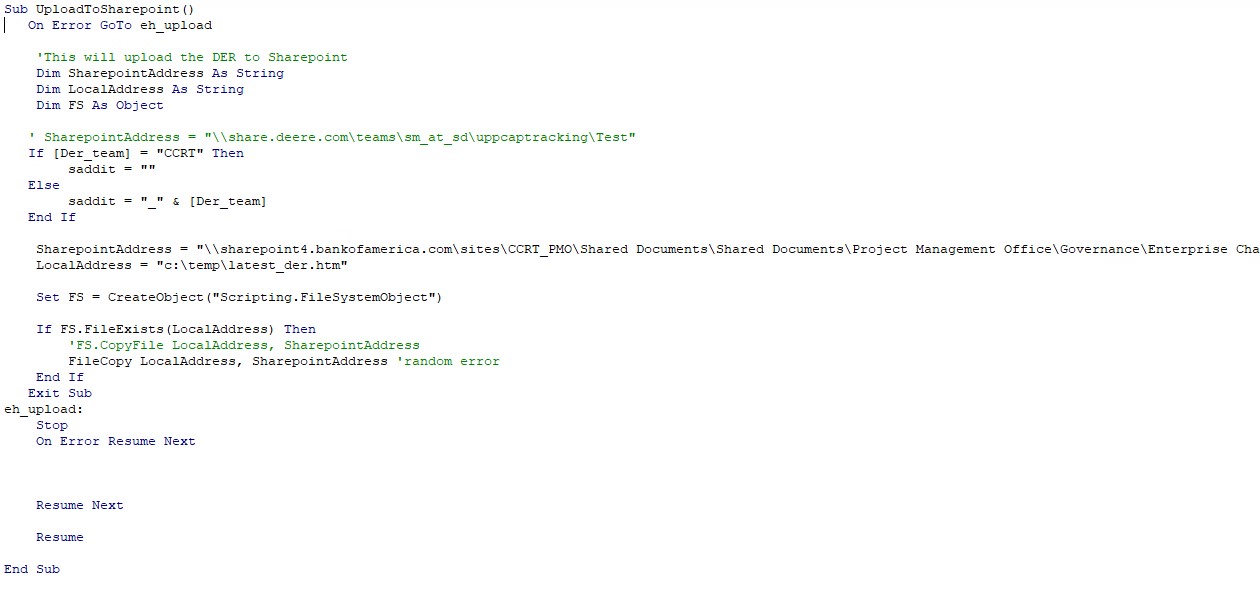
    UploadToSharePoint


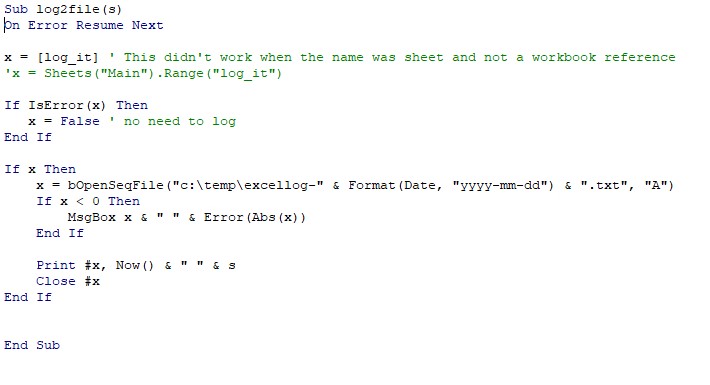
    Log2file
  • blog comments powered by Disqus